

Import personas
Rather than creating personas one at a time, you can bulk-import them from a CSV. From the Library, open Import CSV: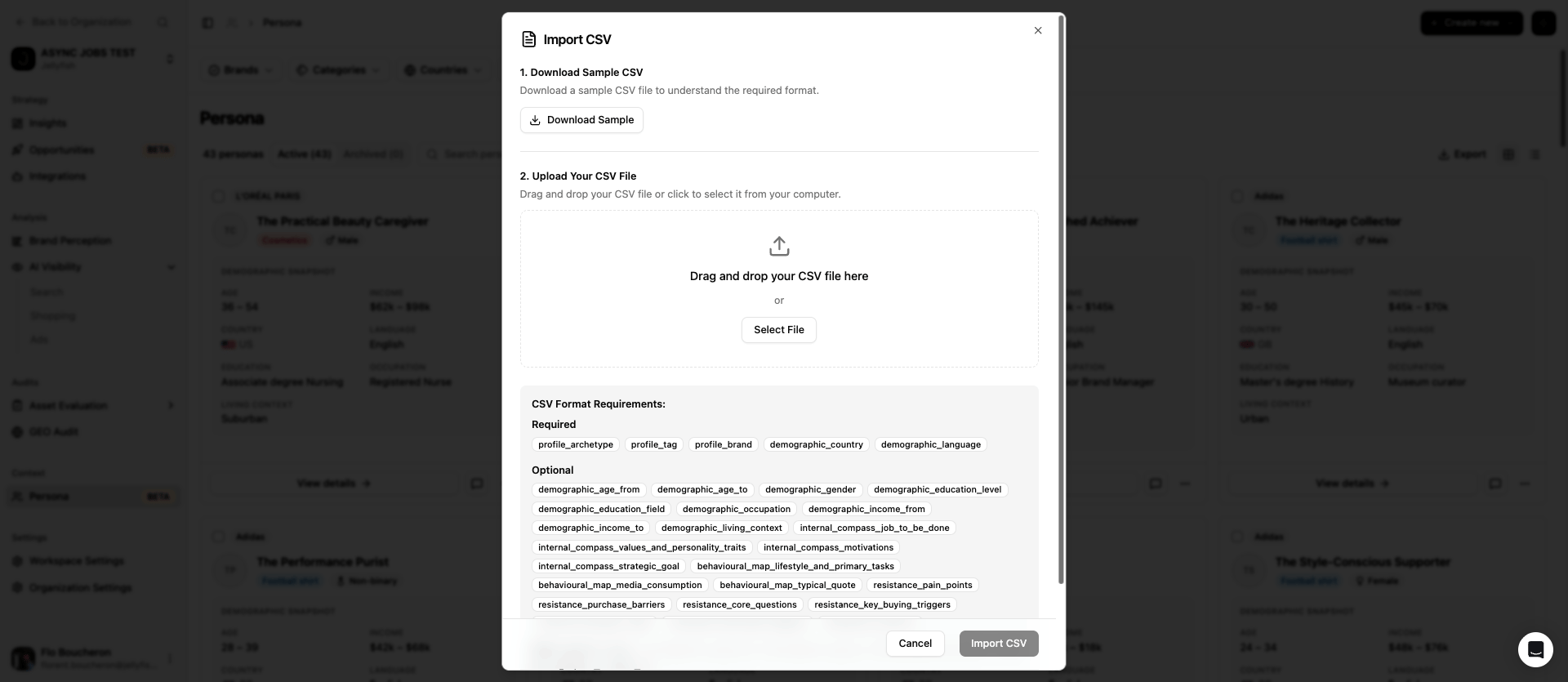
1
Download the sample CSV
Use Download Sample to get a CSV with the expected columns already in place — the fastest way to see the exact format the importer expects.Here’s the same sample, for reference — a single row with the required columns filled in and the rest left blank:
sample-personas.csv
2
Fill it in
Each row is one persona. Some columns are required, the rest are optional and can be left blank.
3
Upload it
Drag and drop the file onto the upload area, or use Select File to browse for it, then confirm the import.
Importing is a fast way to bring in personas you’ve already researched and documented elsewhere. Fields left blank in the CSV are simply left empty on the resulting persona — the same as any manually created one.
Edit personas
Select Edit persona to open the Edit Persona panel and update any field — archetype, brand, category, demographics, or the persona’s avatar (upload an image, or choose one from the stock avatar library, grouped by age range). Every saved edit creates a new version. You can see the full history on a persona’s Evolution tab: one row per saved edit, oldest first, showing when it happened, who or what made the change (including AI enrichment), which field blocks were touched, and how many analyses or audits used that version. Use View on any past row to open it.The Evolution tab is where you go to check what changed on a persona over time, or to look back at an earlier version — there’s no way to revert to a previous version in place, but the history is always there to consult.
Duplicate a persona
Select Duplicate persona to create a copy of an existing persona. This is the fastest way to reuse a persona you’ve already refined — for example, adapting the same archetype for another country, another brand, or another category — without rebuilding its profile from scratch.Archive a persona
Select Archive persona to remove it from the Library’s main Active list without deleting it. Archived personas move to the Archived tab, which keeps its own count alongside Active — useful for retiring personas you’re not using right now but may want to bring back later.Delete a persona
Select Delete persona to permanently remove it.What’s next
Personas overview
How personas are structured, created, and kept up to date.
Chat with a Persona
Have a live, in-character conversation with any persona in your Library.