

Prerequisites
Evaluations only run on a single asset type at a time. You cannot mix images, text and video in the same evaluation.
Set up your evaluation
1
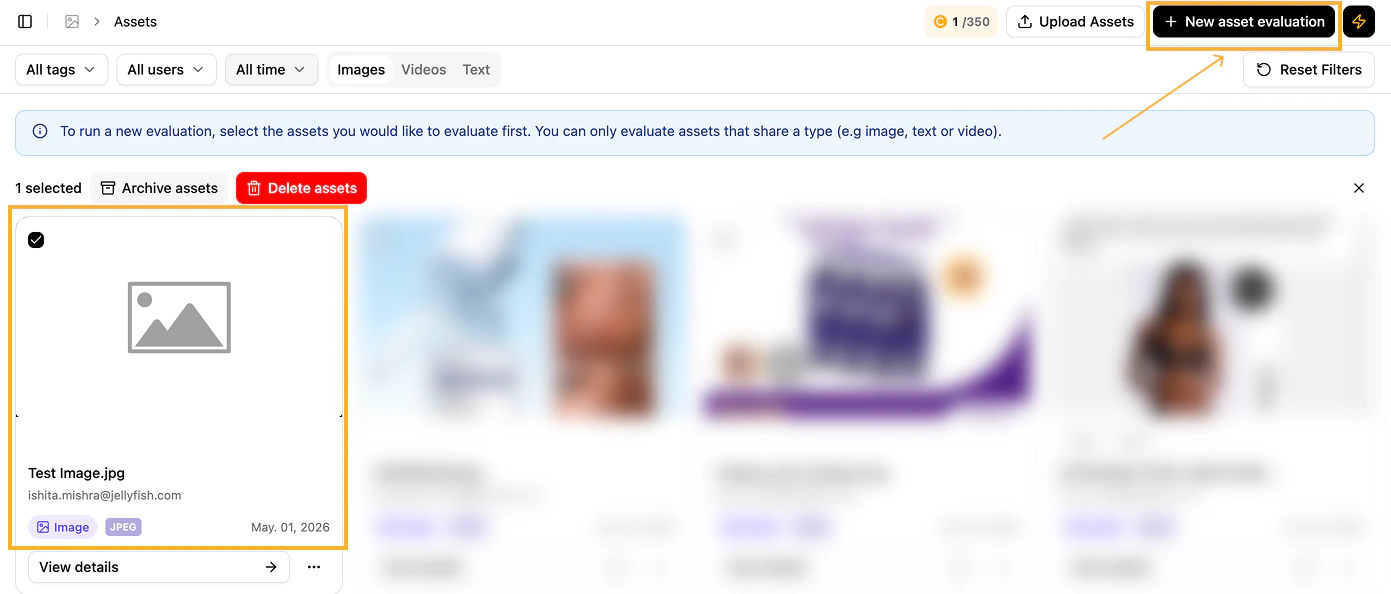
Open the Asset Evaluation tool
From the left-hand menu of the Share Of Model UI, click Asset, then click New asset evaluation.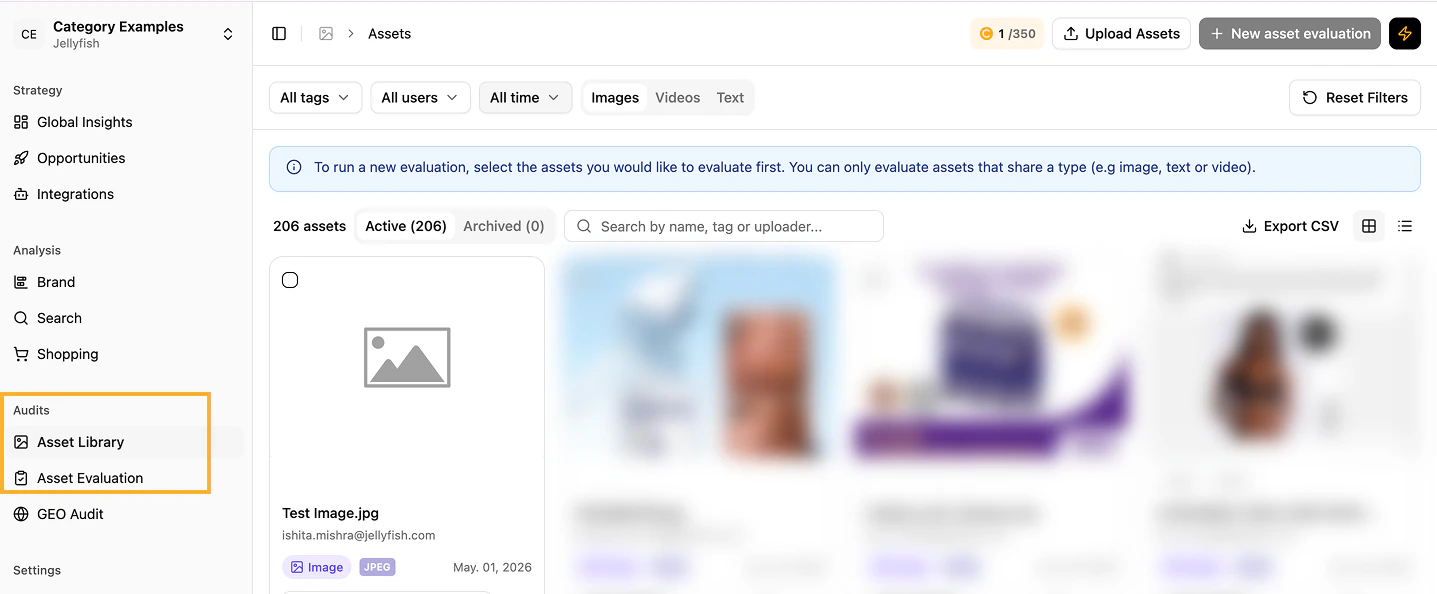
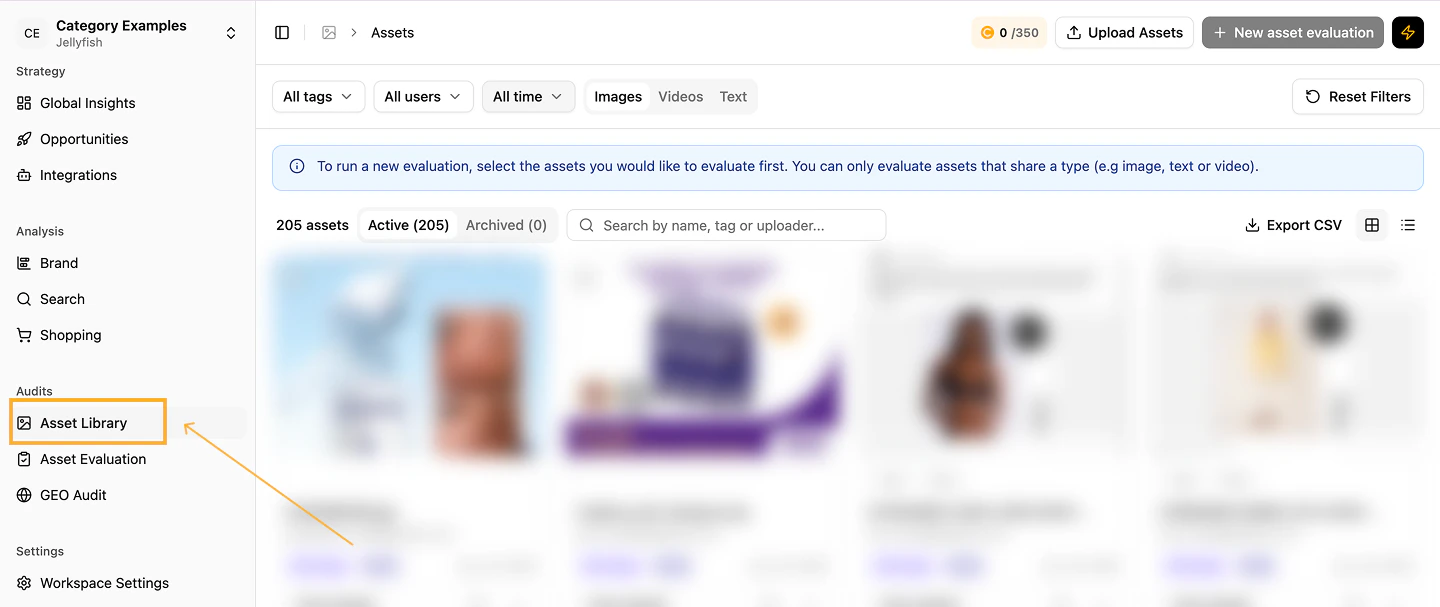
Asset Evaluation entry point
Library
2
Upload assets to the library
Click Upload assets to add files to the library.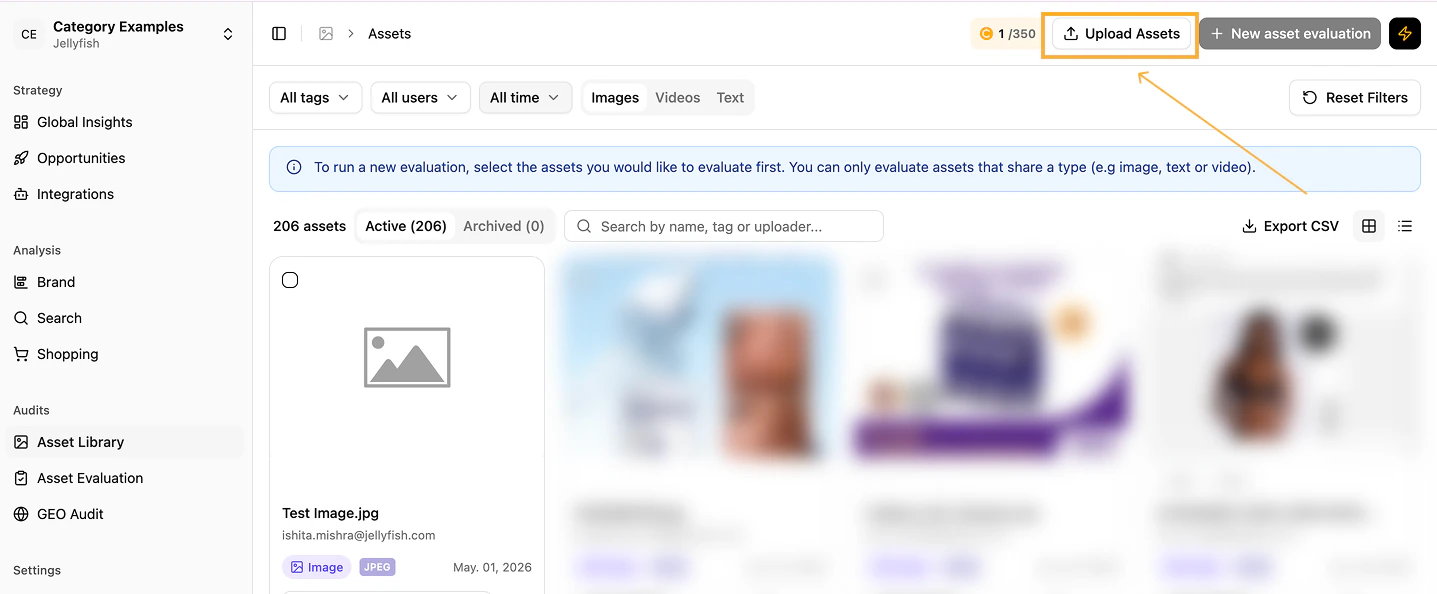
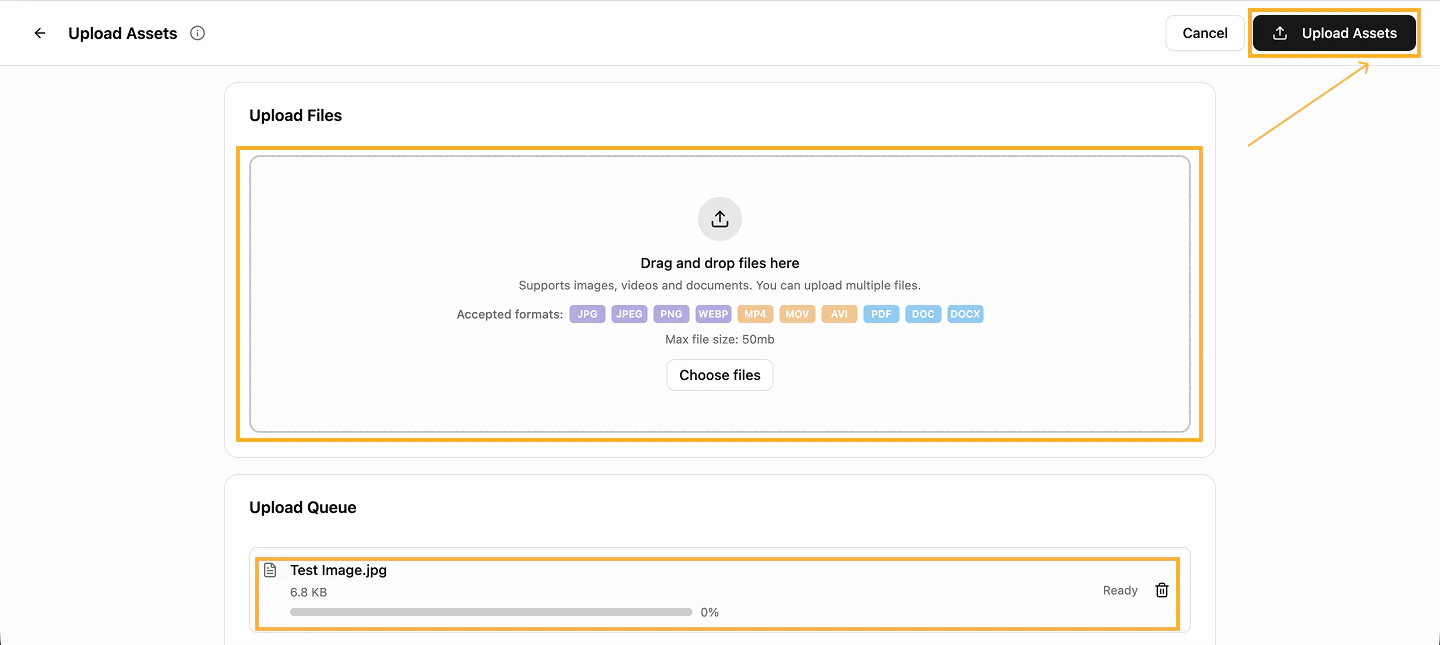
Upload assets
Upload confirmation
Start a new evaluation
3
Review the selected assets
Confirm the assets and click Next.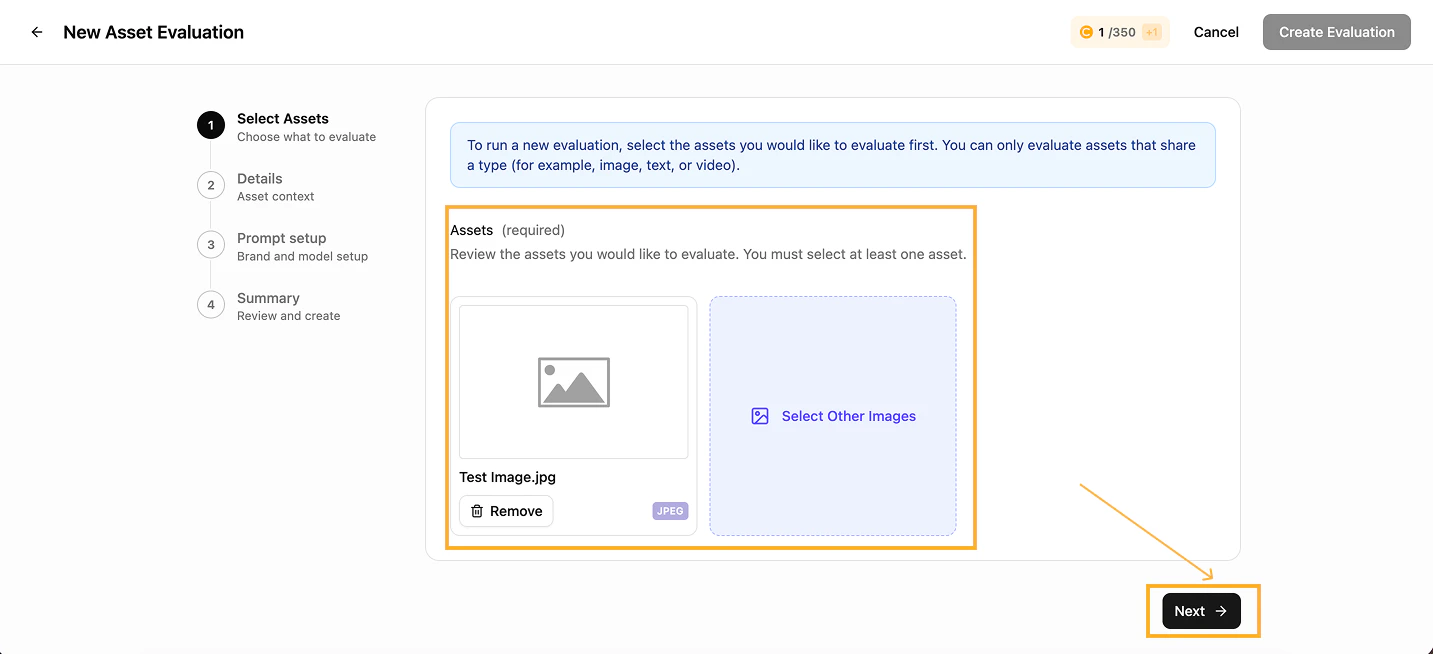
Review assets
4
Choose the asset type
Pick the asset type (image, text, or video) from the dropdown.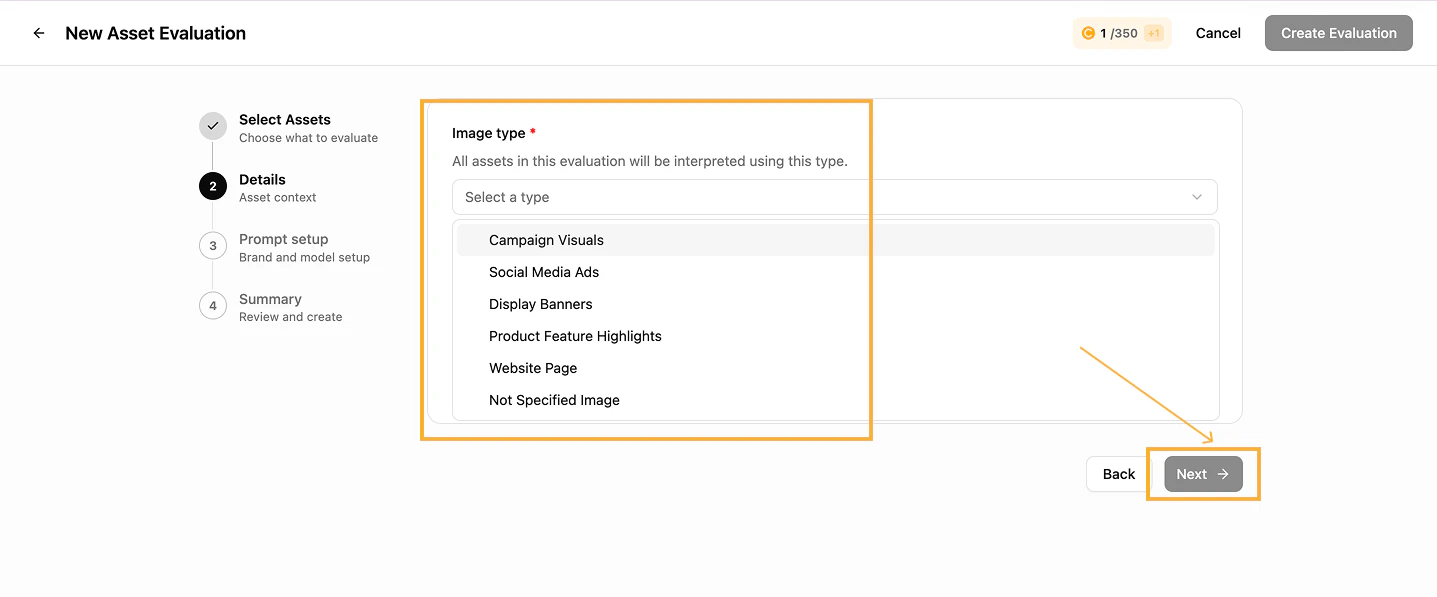
Asset type selection
5
Configure the prompt set-up
Fill in every field in the set-up section, then click Next.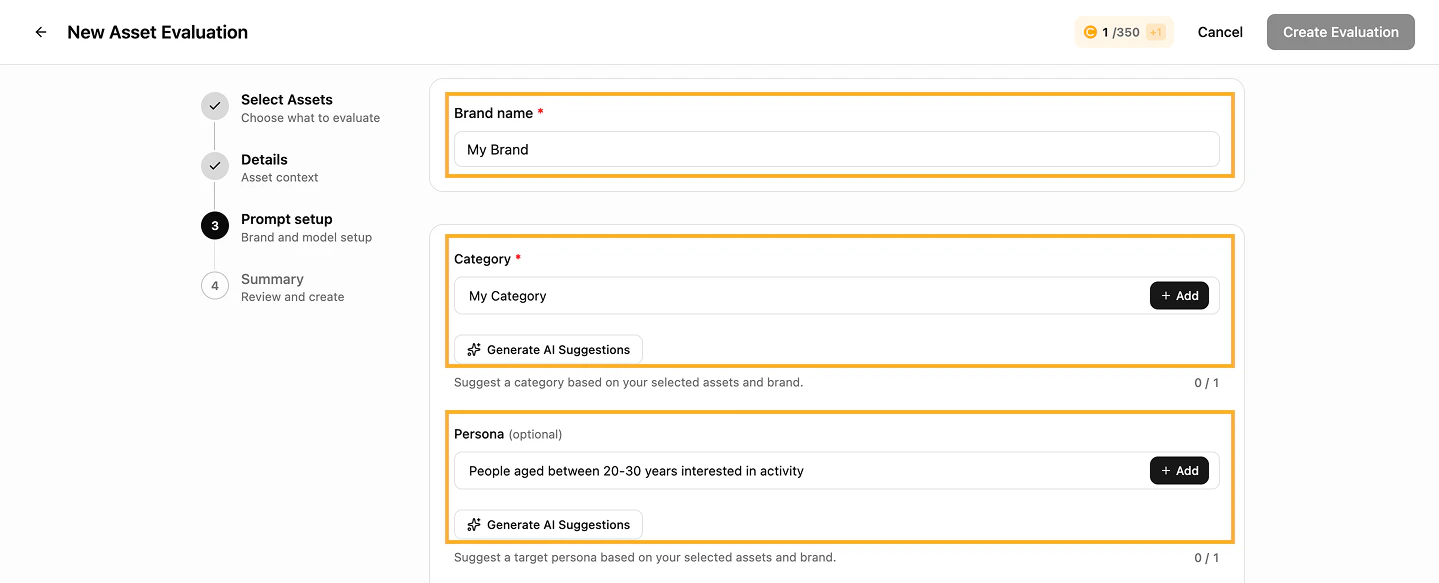
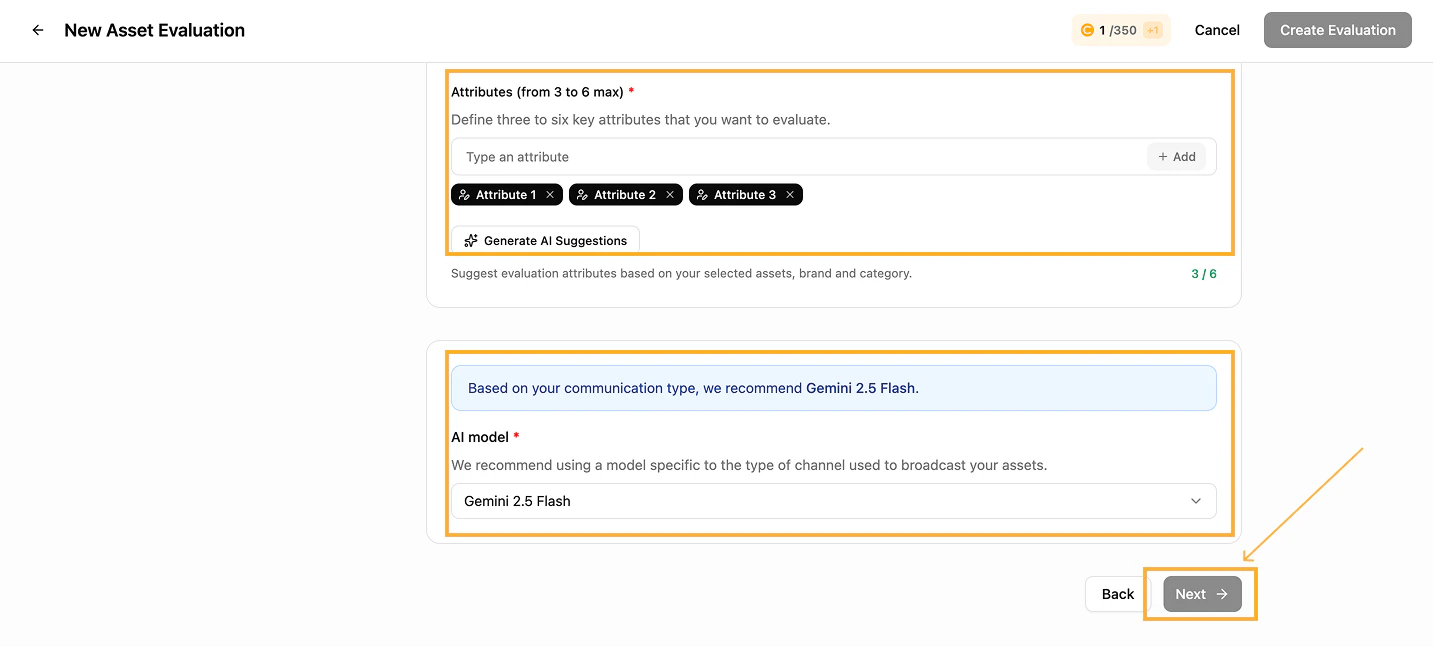
Prompt set-up — part 1
Prompt set-up — part 2
6
Name and review the evaluation
Give the evaluation a meaningful name and review the summary before creating it.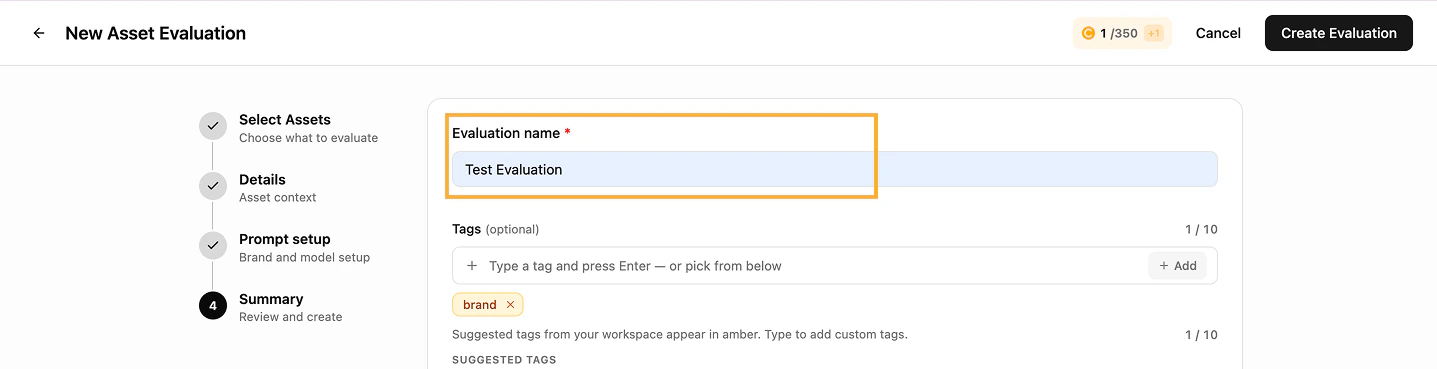
Evaluation name and summary
7
Create the evaluation
With every field validated and reviewed, click Create evaluation to launch.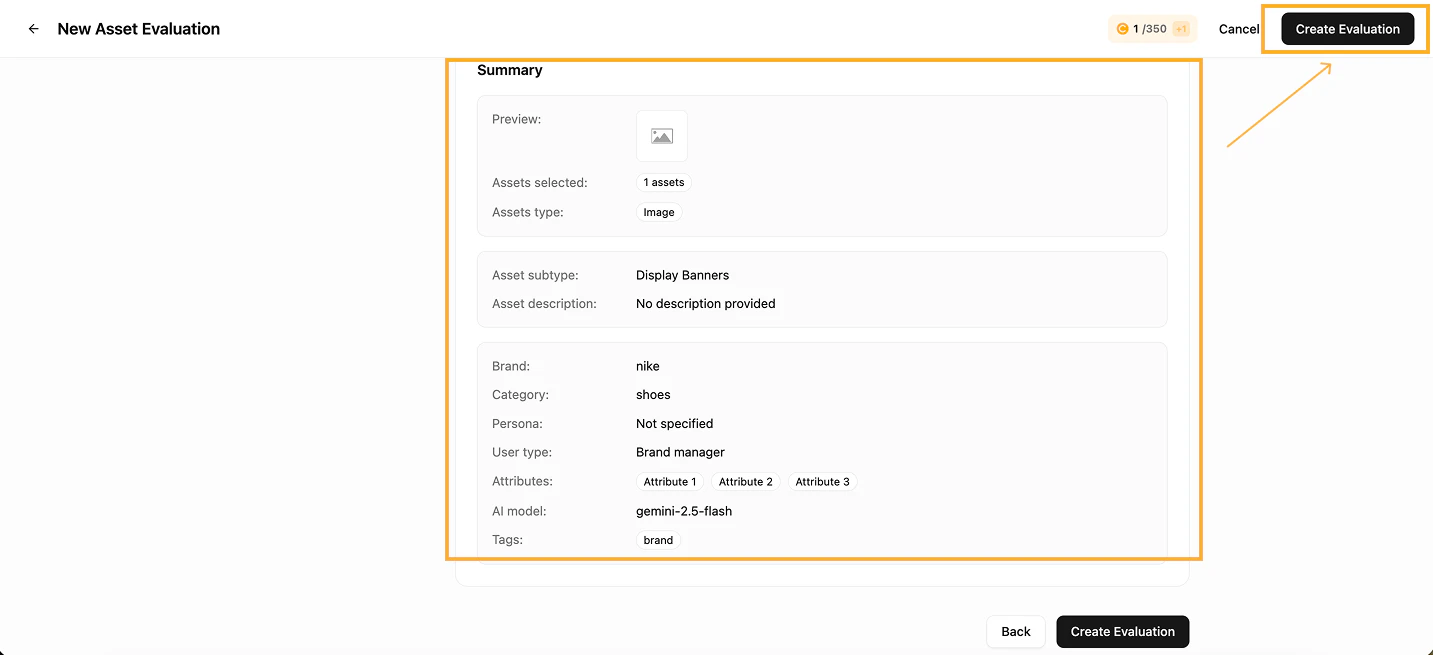
Launch the evaluation
Read the results
1
Open the evaluation
From the Evaluation tab on top of the dashboard, open the completed evaluation.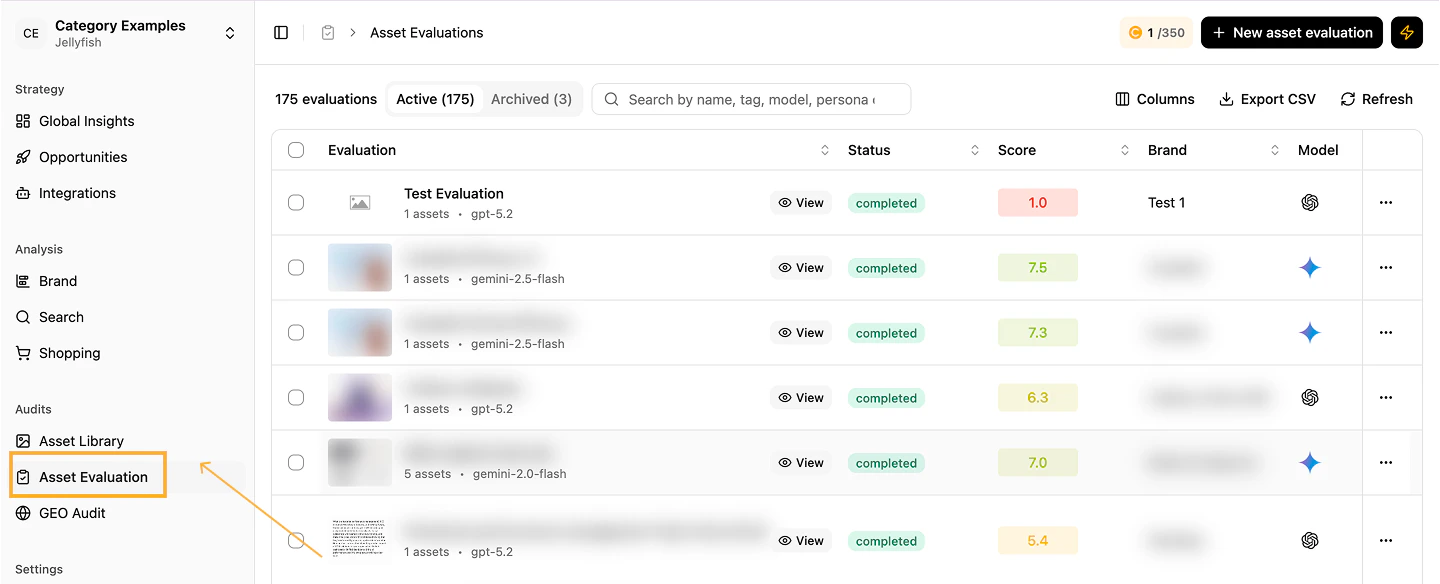
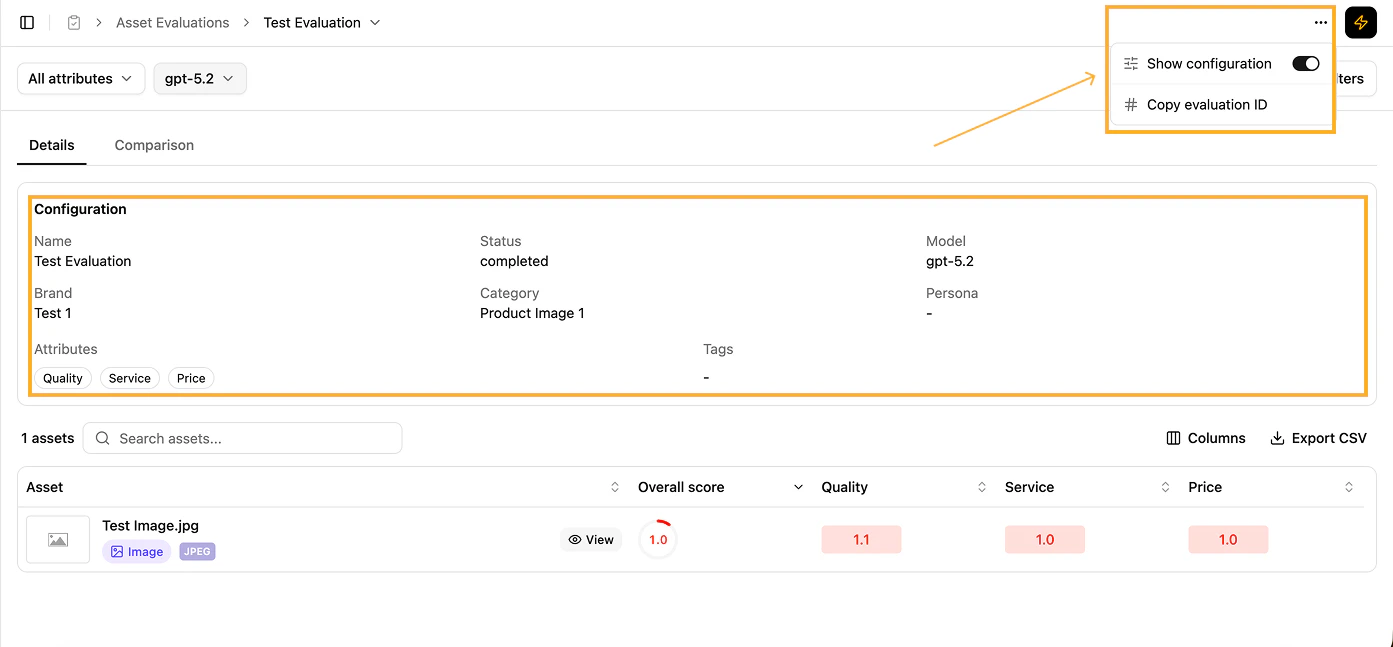
Evaluation list
Overall scoring
2
Drill down by attribute
Use the filters on top to focus on specific attributes and view scores across assets.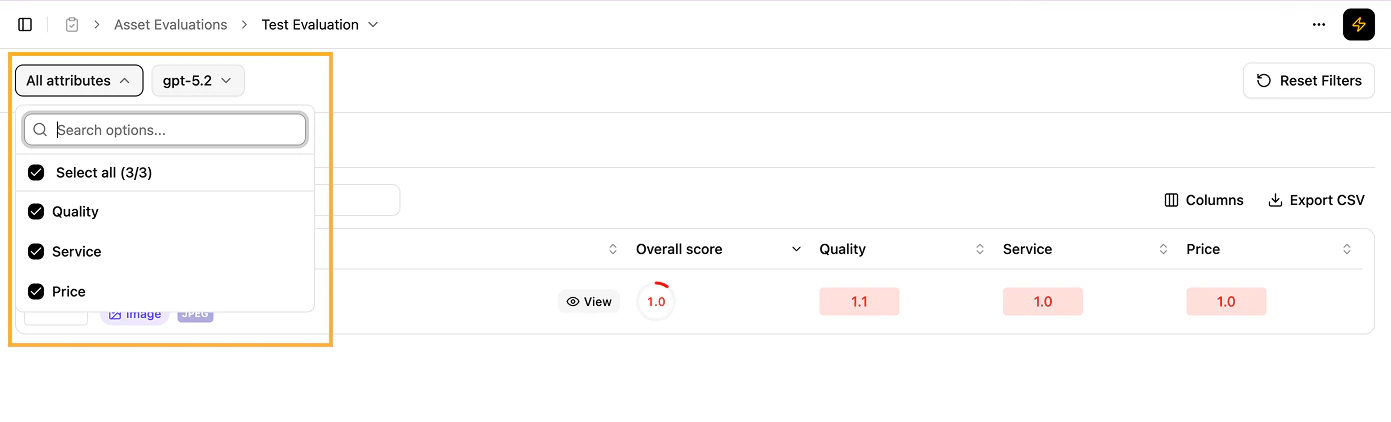
Attribute drill-down
3
Inspect asset-specific insights
Click any asset to see: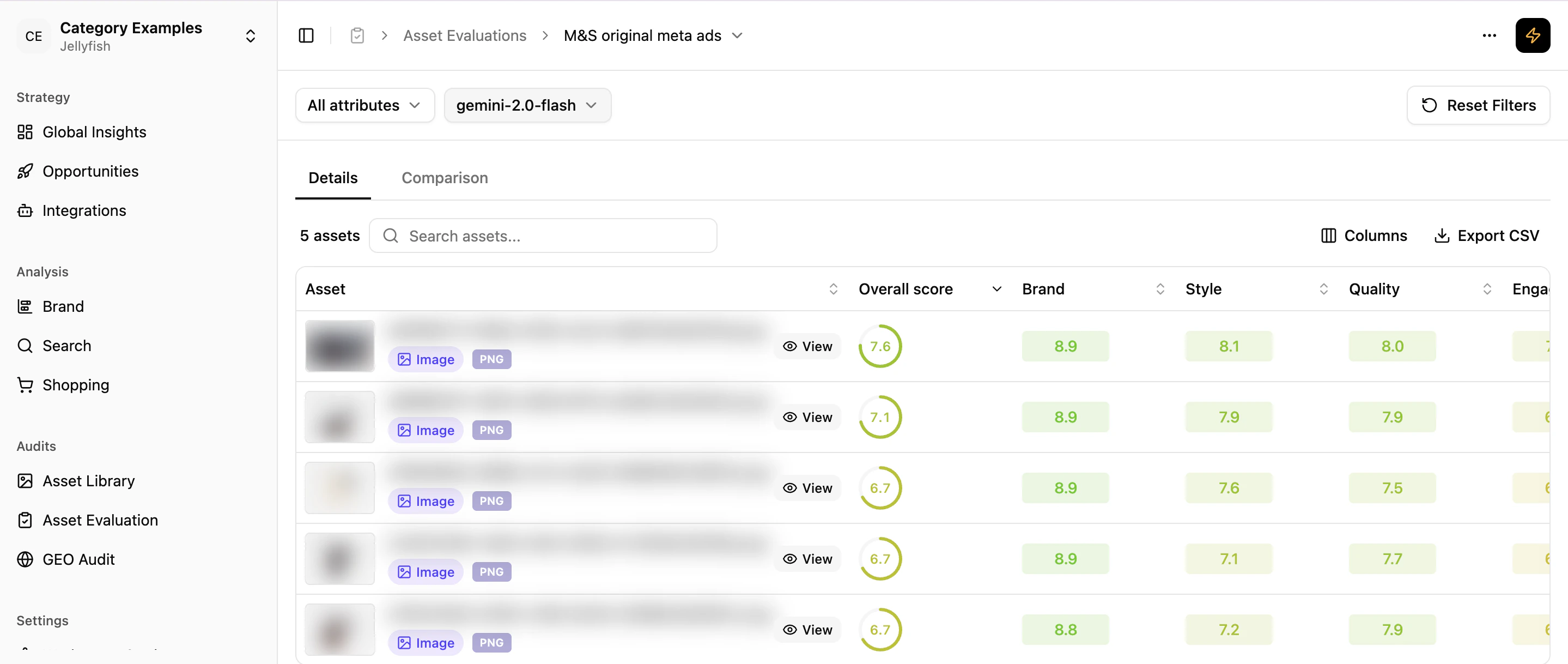
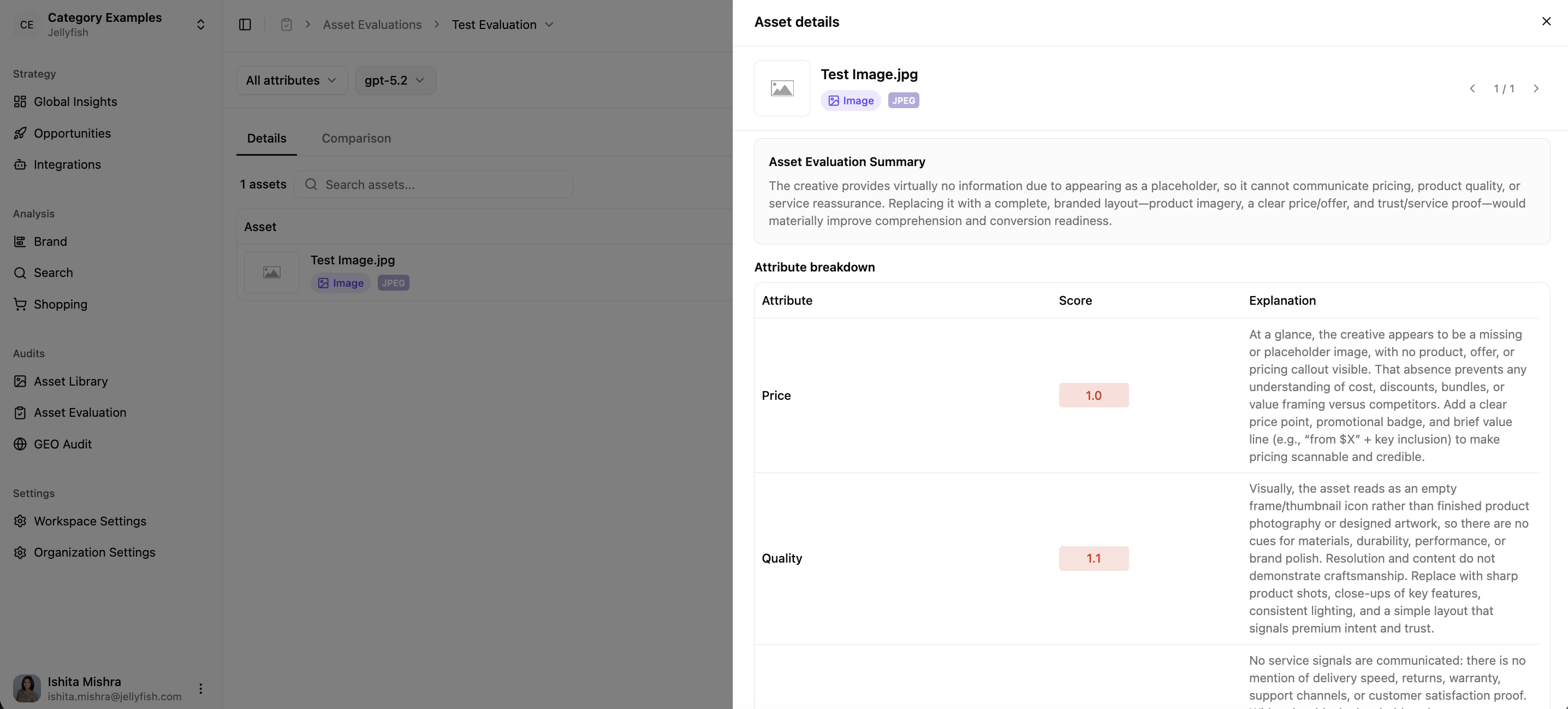
- Overall Score — a holistic performance rating.
- Attribute Breakdown — score and detailed explanation per attribute.
Asset evaluation scores
Asset details
4
Compare assets side by side
Select any two assets to compare their performance on the key attributes.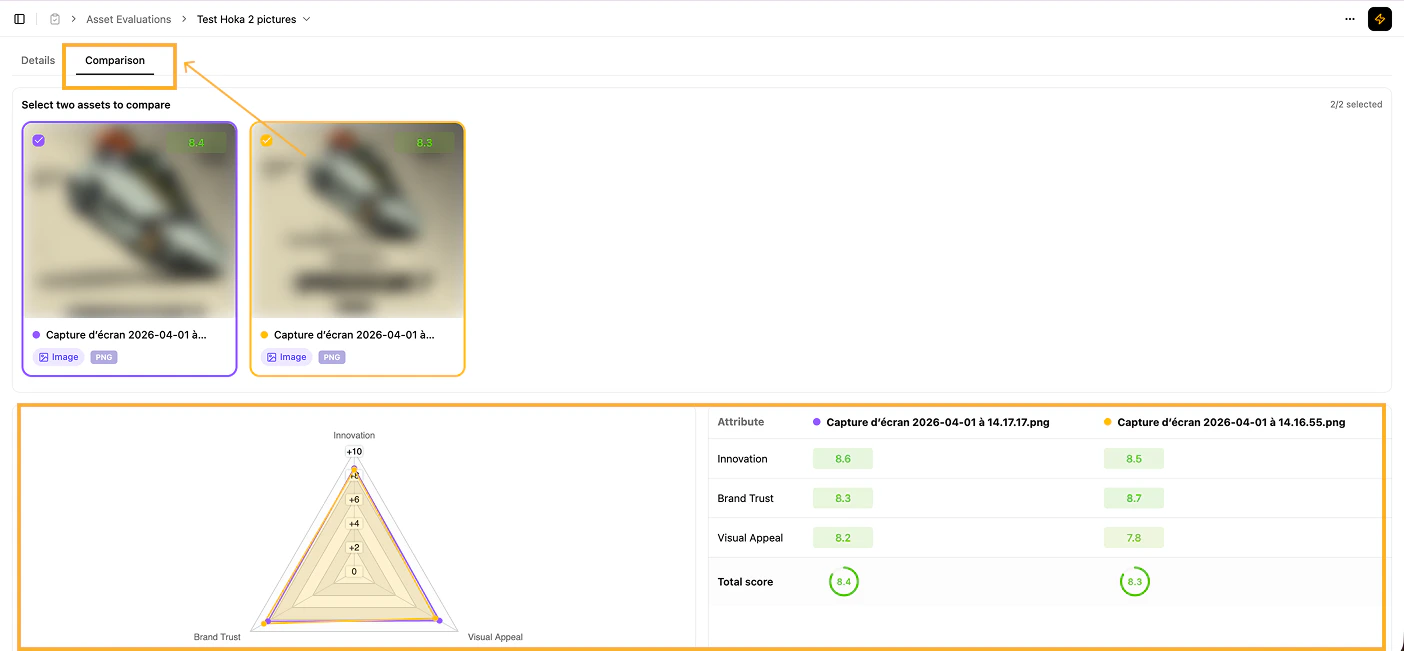
Asset comparison
What’s next
Pencil Scoring
Score creatives directly inside Pencil Pro.
GEO Audit
Audit your website for AI readability.