> ## Documentation Index
> Fetch the complete documentation index at: https://docs.shareofmodel.ai/llms.txt
> Use this file to discover all available pages before exploring further.
# Brand Analysis Starter Kit
> Create and manage Brand analyses inside your workspace, from setup to live insights.
This guide walks through your workspace, the actions available to you, and how to create your first Brand analysis.
## Workspace overview
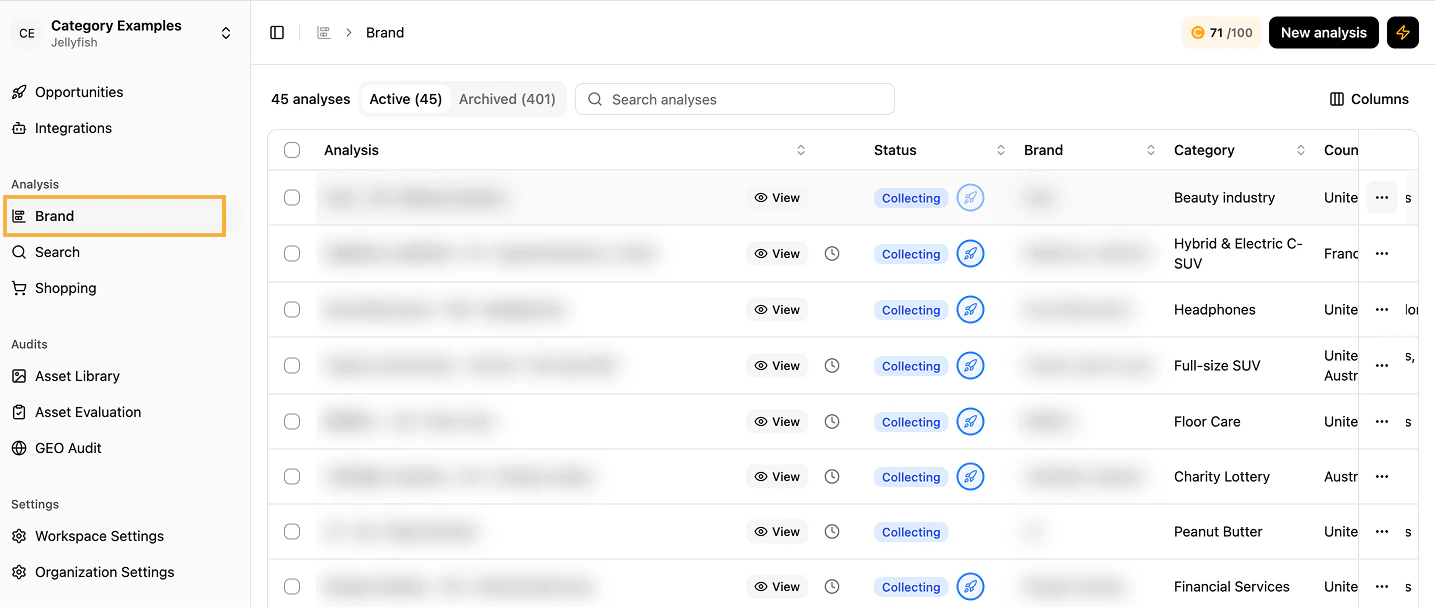
Once you log in, you land on your workspace. If you have multiple workspaces, they appear in alphabetical order. Each workspace contains its own analyses. Switch between workspaces using the dropdown next to the workspace name.
 ## Available actions
Each workspace has a credit balance based on your plan or contract. Credit usage depends on `# regions × # personas` configured per analysis. Need more quota? Contact your Customer Success Manager.
## Available actions
Each workspace has a credit balance based on your plan or contract. Credit usage depends on `# regions × # personas` configured per analysis. Need more quota? Contact your Customer Success Manager.
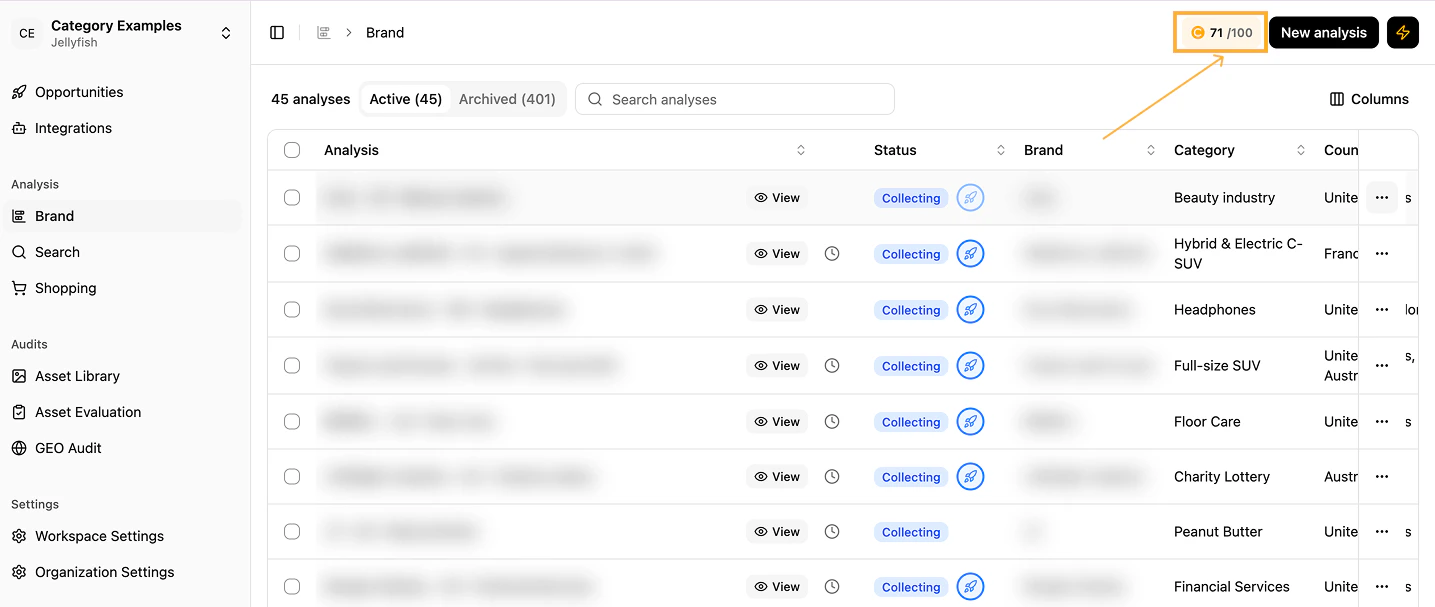 See [the credit system](/platform/getting-started/understanding-the-credit-system-for-share-of-model) for the full breakdown.
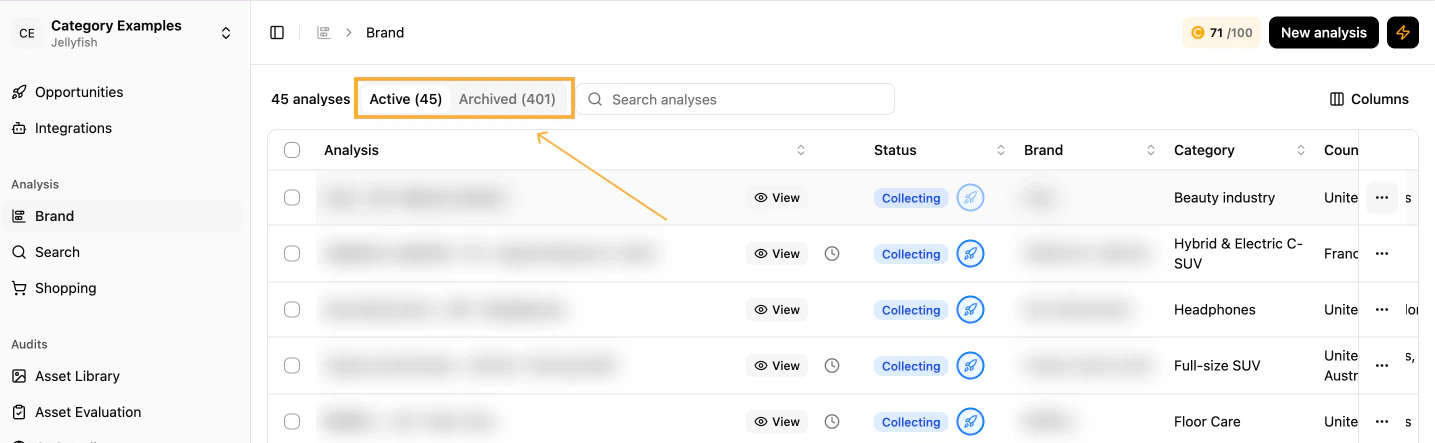
Toggle between active and archived analyses. Archived analyses can be restored if you have available quota.
The period during which an analysis was archived contains no data — data is not backfilled.
See [the credit system](/platform/getting-started/understanding-the-credit-system-for-share-of-model) for the full breakdown.
Toggle between active and archived analyses. Archived analyses can be restored if you have available quota.
The period during which an analysis was archived contains no data — data is not backfilled.
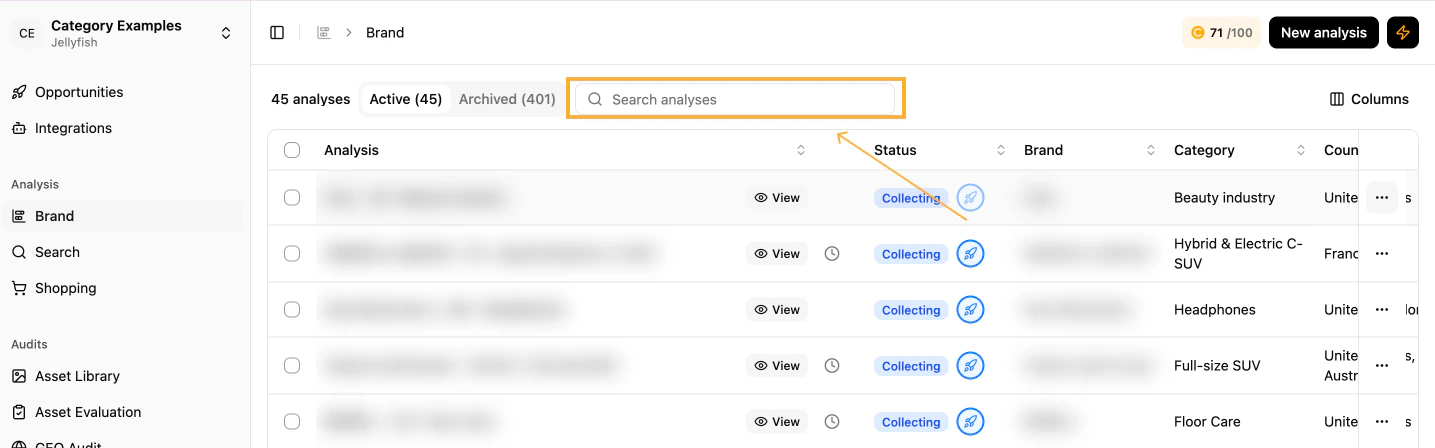
 Find a specific analysis quickly via the search bar.
 Click anywhere on an analysis row to open its dashboards.
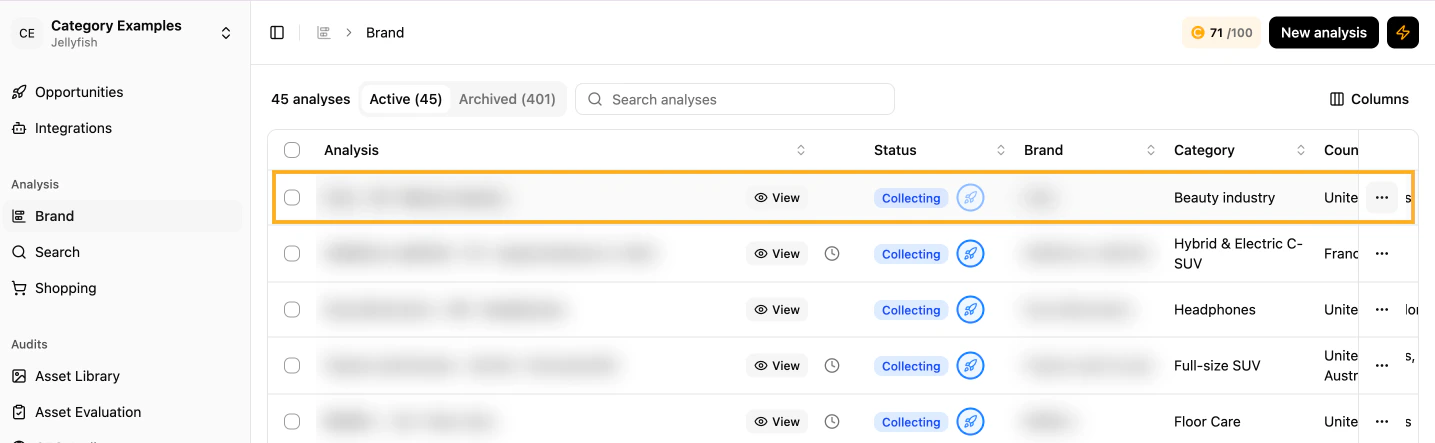 Each analysis can be archived for later or deleted permanently. From **Edit Analysis Duration** you can also update or remove the auto-archiving deadline.
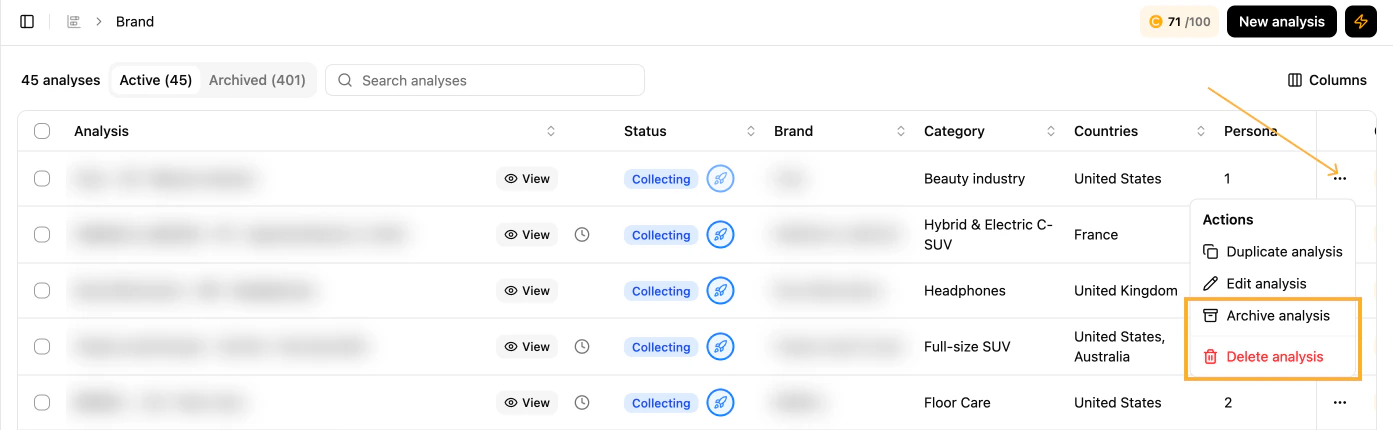 Click **Create New Analysis** to open the configuration form.
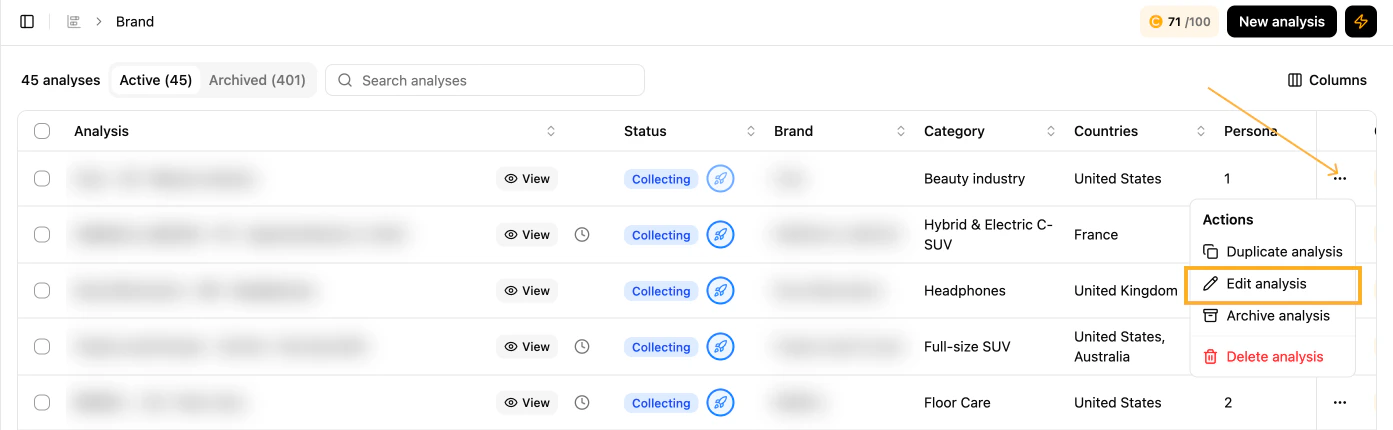
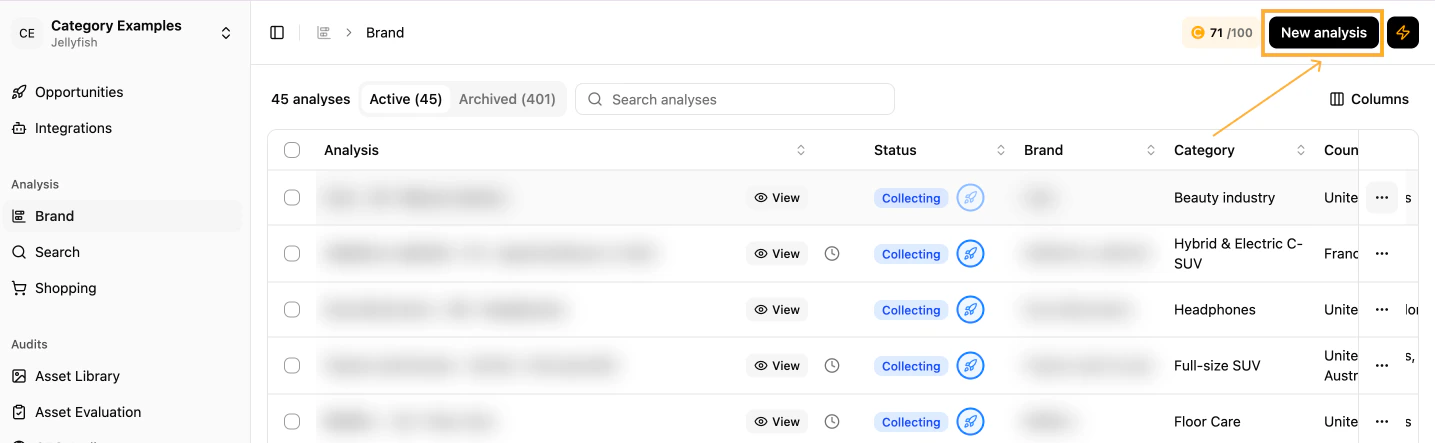 You can rename any analysis post-launch from **Edit Analysis**.
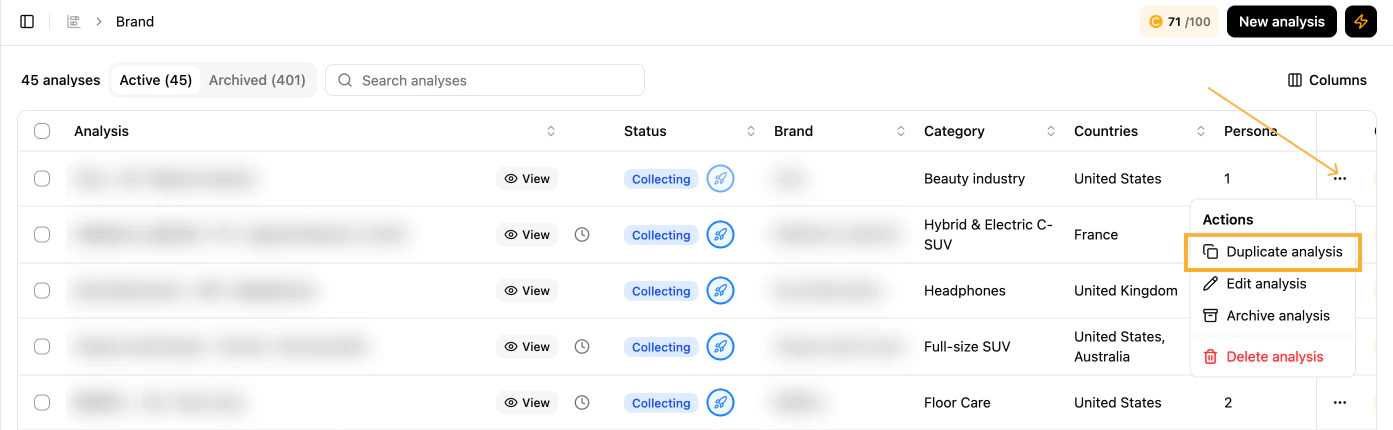
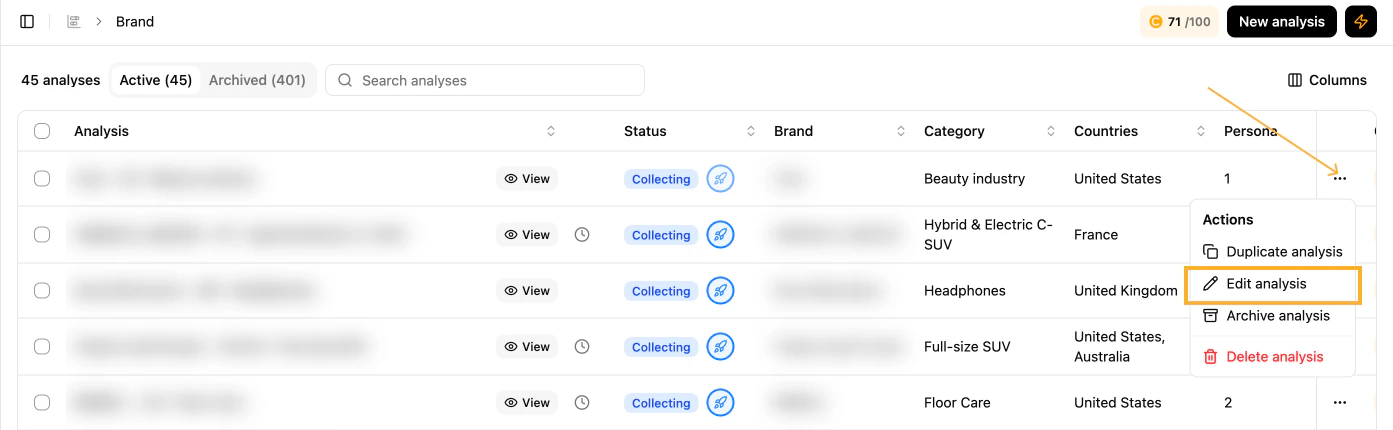 To replicate an existing analysis, use **Duplicate analysis**.
 ## Analysis status
The progress of an analysis is tracked through three statuses:
* **Launching** — initial 15–20 minutes after creation.
* **Collecting** — data is gathered over the next 2–3 weeks. Trends may shift as more data arrives.
* **Live** — data has stabilised and is ready for insights.
## Analysis timer
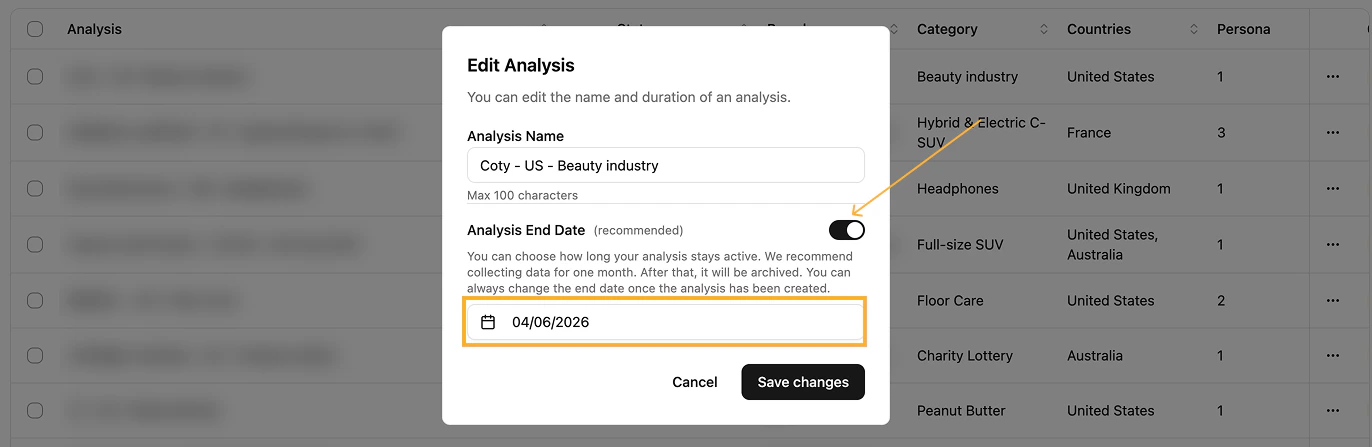
The end date marks when data collection stops. The analysis is then automatically paused until manually unarchived; no data is backfilled for the paused period. The timer can be edited from **Edit Analysis** alongside the analysis name.
## Analysis status
The progress of an analysis is tracked through three statuses:
* **Launching** — initial 15–20 minutes after creation.
* **Collecting** — data is gathered over the next 2–3 weeks. Trends may shift as more data arrives.
* **Live** — data has stabilised and is ready for insights.
## Analysis timer
The end date marks when data collection stops. The analysis is then automatically paused until manually unarchived; no data is backfilled for the paused period. The timer can be edited from **Edit Analysis** alongside the analysis name.
 ## Create a new analysis — best practices
Make sure the brand name is spelled correctly.
Match the language to the analysis region. For example, pick German for an analysis in Germany.
Choose a category relevant to the brand and region. Watch for spelling errors.
We recommend collecting data for at least one month, after which the analysis is archived. You can change or remove the end date later.
Three competitors relevant to the brand and region must be defined for comparison. Spelling matters.
Six attributes are required to launch the analysis — they drive perception scoring on specific dimensions.
Enrich your analysis by selecting the AI models to include. OpenAI, Google AI, Meta AI and Anthropic are pre-selected by default for optimal coverage.
Pick up to **8 regions** per analysis from the dropdown.
Define up to **5 personas** per analysis based on interests, demographics and location. Example: *A 35-year-old woman who lives in the city.*
You can use AI-suggested options on the UI for every input above.
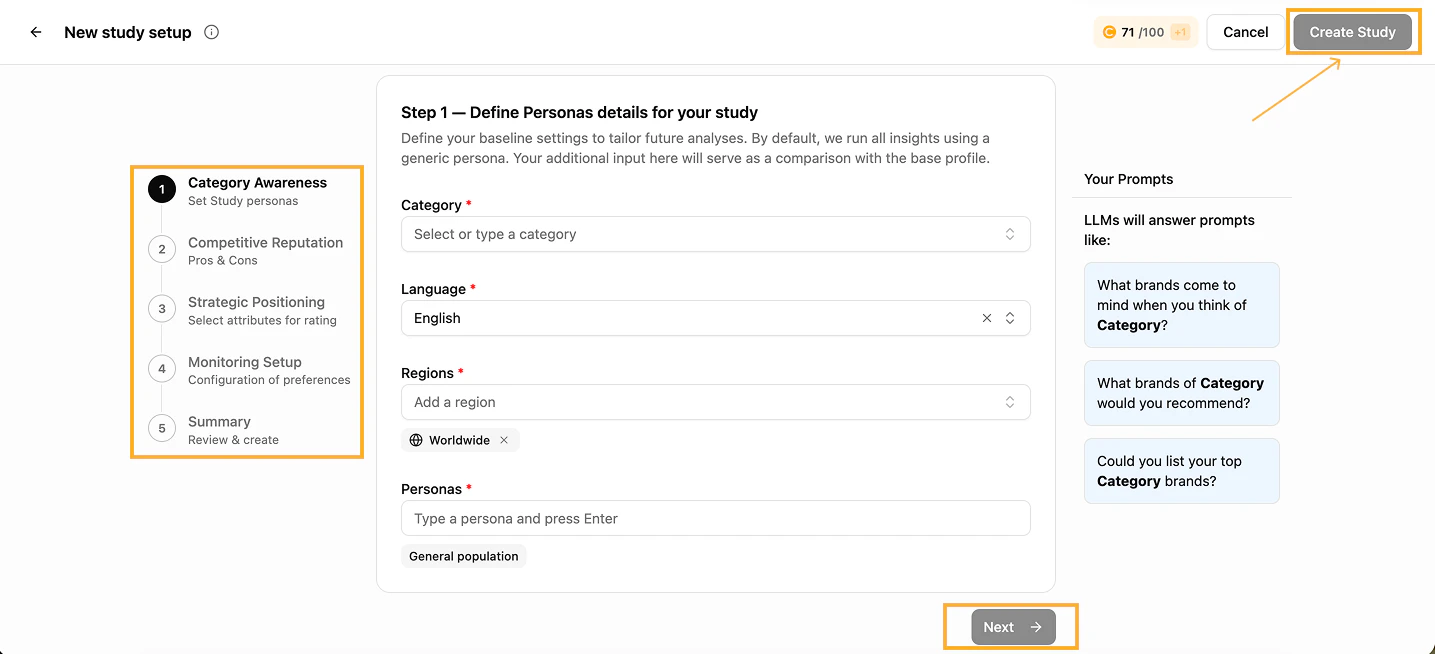
Once all parameters are entered and verified, click **Create Analysis** to start data collection.
## Create a new analysis — best practices
Make sure the brand name is spelled correctly.
Match the language to the analysis region. For example, pick German for an analysis in Germany.
Choose a category relevant to the brand and region. Watch for spelling errors.
We recommend collecting data for at least one month, after which the analysis is archived. You can change or remove the end date later.
Three competitors relevant to the brand and region must be defined for comparison. Spelling matters.
Six attributes are required to launch the analysis — they drive perception scoring on specific dimensions.
Enrich your analysis by selecting the AI models to include. OpenAI, Google AI, Meta AI and Anthropic are pre-selected by default for optimal coverage.
Pick up to **8 regions** per analysis from the dropdown.
Define up to **5 personas** per analysis based on interests, demographics and location. Example: *A 35-year-old woman who lives in the city.*
You can use AI-suggested options on the UI for every input above.
Once all parameters are entered and verified, click **Create Analysis** to start data collection.
 Data is available after a 15-minute delay. The **View Details** button stays inactive until then. Refresh after 15–20 minutes to access the dashboards.
## Insights available after launch
* **AI brand awareness** — Category Landscape
* **AI category & brand perception** — Category perception and Brand Perception (based on custom attributes)
* **Sources** *(beta)* — most influential sources AI models reference for your category
* **Smart Audiences** *(beta)* — most relevant customer personas per category, based on advanced LLM understanding
You can review the configuration of any analysis via the **Show Configuration** toggle in the top-right corner.
**Filters** are available for time period, individual LLMs, regions (when more than one) and personas (when more than one).
Wait at least 2–3 weeks of data collection to obtain stabilised data ready for insights.
## What's next
Understand how the Brand module works.
Read awareness charts for your category.
Read perception charts for your category.
Quick answers on metrics and methodology.
Data is available after a 15-minute delay. The **View Details** button stays inactive until then. Refresh after 15–20 minutes to access the dashboards.
## Insights available after launch
* **AI brand awareness** — Category Landscape
* **AI category & brand perception** — Category perception and Brand Perception (based on custom attributes)
* **Sources** *(beta)* — most influential sources AI models reference for your category
* **Smart Audiences** *(beta)* — most relevant customer personas per category, based on advanced LLM understanding
You can review the configuration of any analysis via the **Show Configuration** toggle in the top-right corner.
**Filters** are available for time period, individual LLMs, regions (when more than one) and personas (when more than one).
Wait at least 2–3 weeks of data collection to obtain stabilised data ready for insights.
## What's next
Understand how the Brand module works.
Read awareness charts for your category.
Read perception charts for your category.
Quick answers on metrics and methodology.