> ## Documentation Index
> Fetch the complete documentation index at: https://docs.shareofmodel.ai/llms.txt
> Use this file to discover all available pages before exploring further.
# Ads
> Understand which sponsored messages and products are surfaced by conversational AI, how advertisers present them, and where those ads direct users.
Paid visibility is ultimately experienced through the **individual ads users see within AI responses**.
Understanding which advertisers capture visibility is only part of the picture. To understand their advertising strategy, you also need to see **what they promote, how they present it, and where they send users.**
The Ads view provides the most granular layer of your Ads analysis. It brings together the **creative, ad copy, advertiser, ad type and destination URL** behind each detected placement, helping you understand how paid visibility actually materializes for users.
## What this view helps you analyse
The Ads view helps you explore the **individual sponsored placements** detected across your tracked prompts.
For each ad, you can analyse:
* the **creative and ad copy** surfaced to users;
* the **advertiser domain** associated with the placement;
* the **AI engine** where it appeared;
* the **ad type**, such as product or text;
* the **destination URL** users are directed to;
* **Total Results**, showing across how many results the ad was detected.
Together, these signals connect paid visibility to the **actual advertising experiences surfaced within AI responses.**
### Explore what advertisers are promoting
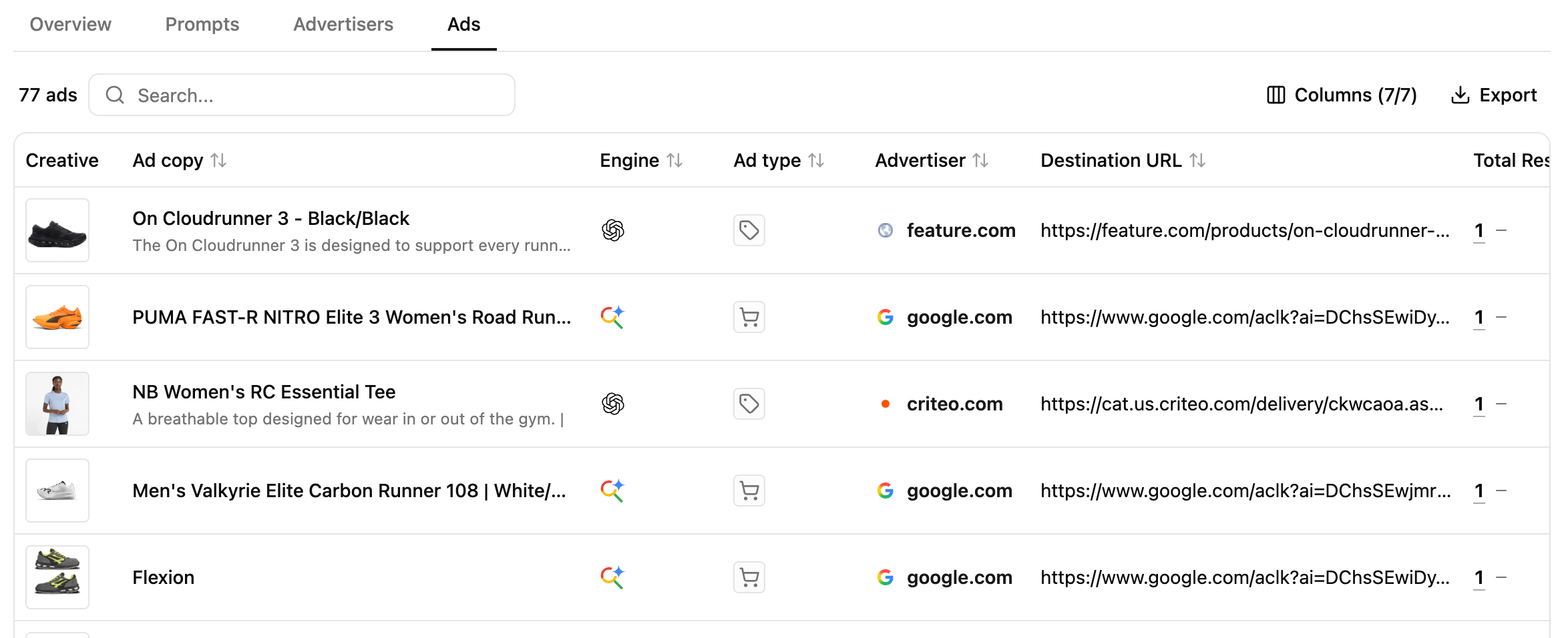 Use the Ads table to explore the individual products, offers and messages surfaced across your AI advertising landscape.
Creative and Ad Copy show **what users are exposed to**, while Advertiser and Ad Type provide context on who delivers the placement and how it is presented.
This gives you a direct view into **how brands and advertisers approach paid visibility within conversational AI.**
### Connect an ad back to its context
Use the Ads table to explore the individual products, offers and messages surfaced across your AI advertising landscape.
Creative and Ad Copy show **what users are exposed to**, while Advertiser and Ad Type provide context on who delivers the placement and how it is presented.
This gives you a direct view into **how brands and advertisers approach paid visibility within conversational AI.**
### Connect an ad back to its context
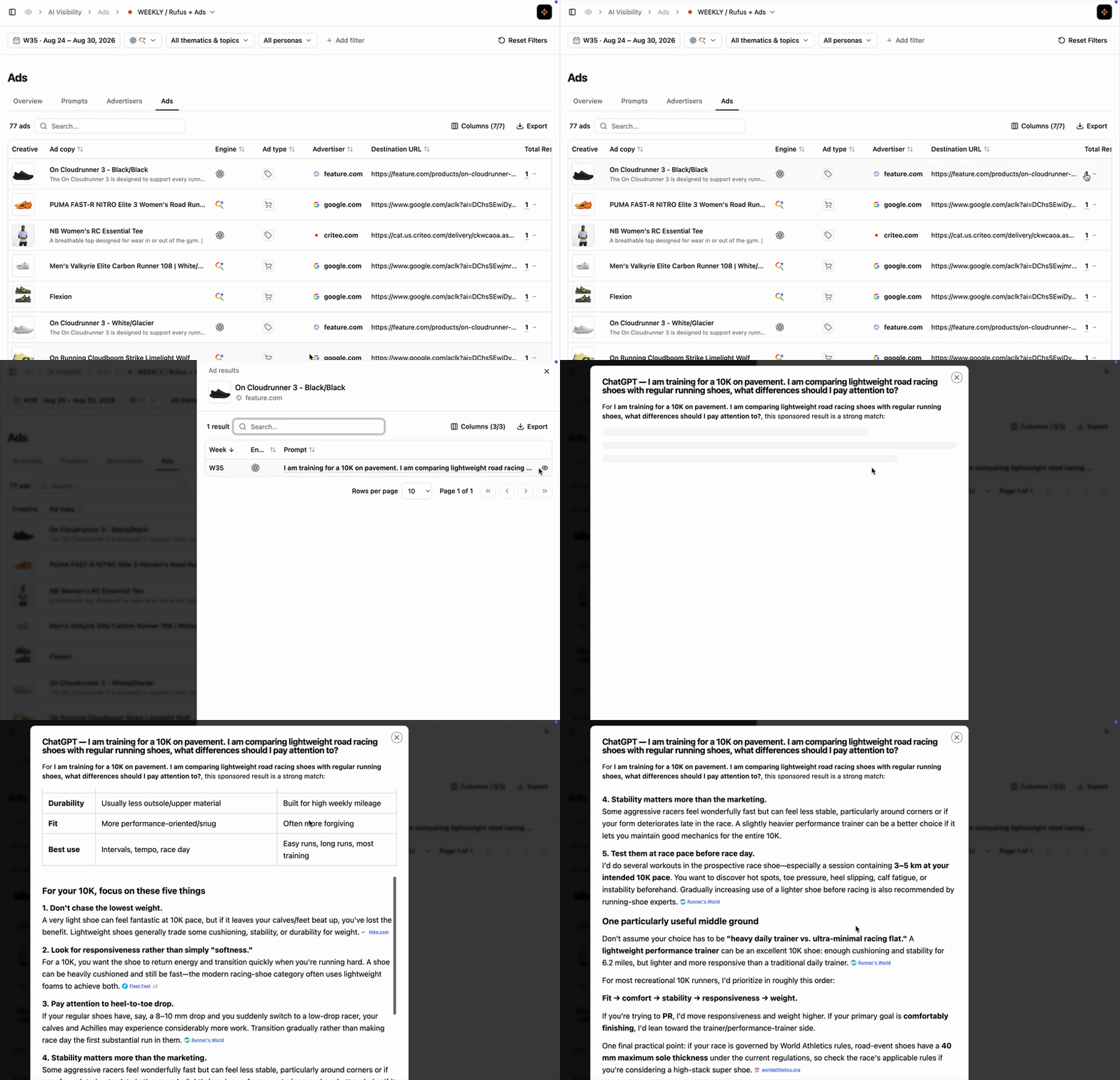 Open **Ad Results** to understand where a specific ad was detected.
The side panel connects the ad back to its underlying **week, engine and prompt**, allowing you to identify the user queries and AI environments in which that creative appeared.
This lets you investigate advertising in both directions: from **prompt → ad**, or from an interesting **ad → the user needs that triggered it**.
## Reading cues
These are signals to read, not rules.
The advertiser is repeatedly using the same creative or message across different advertising occurrences. Explore the underlying prompts to understand how broadly that message is being deployed.
Advertisers may approach the same user intent with different products, offers or messages. Compare creatives and destinations to understand how competitors position themselves around that need.
The way advertising is surfaced can vary between AI platforms. Compare product and text ads to understand how the paid experience differs by engine.
Destination URLs can reveal different strategies, from directing users toward specific products to broader shopping or discovery experiences. Use them to understand **what advertisers want users to do after gaining their attention.**
## How to use this view effectively
Explore **Creative, Ad Copy and Ad Type** to understand what advertisers are showing users, then use **Advertiser and Destination URL** to understand who delivers the placement and where it leads.
Open **Ad Results** to connect interesting ads back to the prompts and engines where they appeared.
## Extra features
* **Filters** — refine the data displayed.
* **Add/Hide columns** — adapt the table to your workflow.
* **Export** — extract filtered tables to CSV or Excel.
* **Search** — find a brand or product via the search bar.
* **Sort** — order by any column.
## What's next
Measure how broadly an advertiser appears across ad-supported prompts.
Understand how total paid visibility is distributed between advertisers.
Open **Ad Results** to understand where a specific ad was detected.
The side panel connects the ad back to its underlying **week, engine and prompt**, allowing you to identify the user queries and AI environments in which that creative appeared.
This lets you investigate advertising in both directions: from **prompt → ad**, or from an interesting **ad → the user needs that triggered it**.
## Reading cues
These are signals to read, not rules.
The advertiser is repeatedly using the same creative or message across different advertising occurrences. Explore the underlying prompts to understand how broadly that message is being deployed.
Advertisers may approach the same user intent with different products, offers or messages. Compare creatives and destinations to understand how competitors position themselves around that need.
The way advertising is surfaced can vary between AI platforms. Compare product and text ads to understand how the paid experience differs by engine.
Destination URLs can reveal different strategies, from directing users toward specific products to broader shopping or discovery experiences. Use them to understand **what advertisers want users to do after gaining their attention.**
## How to use this view effectively
Explore **Creative, Ad Copy and Ad Type** to understand what advertisers are showing users, then use **Advertiser and Destination URL** to understand who delivers the placement and where it leads.
Open **Ad Results** to connect interesting ads back to the prompts and engines where they appeared.
## Extra features
* **Filters** — refine the data displayed.
* **Add/Hide columns** — adapt the table to your workflow.
* **Export** — extract filtered tables to CSV or Excel.
* **Search** — find a brand or product via the search bar.
* **Sort** — order by any column.
## What's next
Measure how broadly an advertiser appears across ad-supported prompts.
Understand how total paid visibility is distributed between advertisers.