> ## Documentation Index
> Fetch the complete documentation index at: https://docs.shareofmodel.ai/llms.txt
> Use this file to discover all available pages before exploring further.
# Prompts
> Understand which user queries trigger advertising, how much paid activity they attract, and which advertisers compete for visibility across your tracked prompt territory.
Advertising in conversational AI is triggered within the context of **specific user questions and needs**.
Knowing that ads exist across your AI landscape is only the first step. To understand what is driving that activity, you need to identify **which prompts attract advertising, how intense that activity is, and which advertisers are competing for those moments.**
The Prompts view connects paid visibility back to the same prompts already tracked in your Search project, helping you understand **where advertising enters the user journey** and the intent behind it.
## What this view helps you analyse
The Prompts view helps you move from the overall advertising landscape to the **individual queries behind it**.
For each prompt generating ads, you can analyse:
* its **Thematic & Topic** and Interest;
* the **AI engine** where advertising appeared;
* the **type of ad** surfaced;
* the **total number of ads** detected;
* your **Ad Presence Rate**;
* the **advertisers** competing for that prompt.
This helps you identify **which user needs attract paid activity and whether your brand participates in that advertising landscape.**
### Identify the prompts attracting advertising
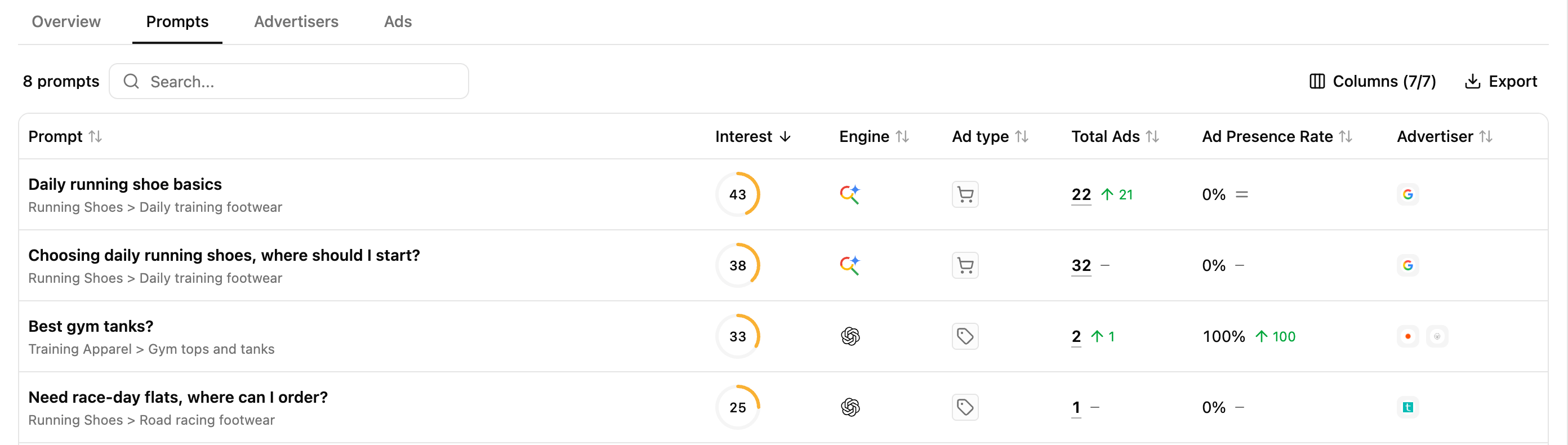 Use the Prompts table to identify where sponsored content appears across your tracked search territory.
**Total Ads** helps reveal the intensity of advertising around a prompt, while the advertiser information shows who is occupying that paid space.
Combined with **Thematic & Topic and Interest**, this connects advertising activity back to the user needs represented by your Search project.
A high number of ads does not necessarily mean many advertisers are competing. A single advertiser can generate several ads within the same result.
### Understand your advertiser presence within those prompts
**Ad Presence Rate** shows across how many ad-supported prompts **your advertiser domain is present**.
Use it alongside Total Ads and the advertisers surfaced to identify **where your domain participates in paid visibility and where advertising is captured by other advertisers.**
This helps map the user needs where you already have paid presence against those where other advertisers are active.
### Investigate what happens behind a prompt
Use the Prompts table to identify where sponsored content appears across your tracked search territory.
**Total Ads** helps reveal the intensity of advertising around a prompt, while the advertiser information shows who is occupying that paid space.
Combined with **Thematic & Topic and Interest**, this connects advertising activity back to the user needs represented by your Search project.
A high number of ads does not necessarily mean many advertisers are competing. A single advertiser can generate several ads within the same result.
### Understand your advertiser presence within those prompts
**Ad Presence Rate** shows across how many ad-supported prompts **your advertiser domain is present**.
Use it alongside Total Ads and the advertisers surfaced to identify **where your domain participates in paid visibility and where advertising is captured by other advertisers.**
This helps map the user needs where you already have paid presence against those where other advertisers are active.
### Investigate what happens behind a prompt
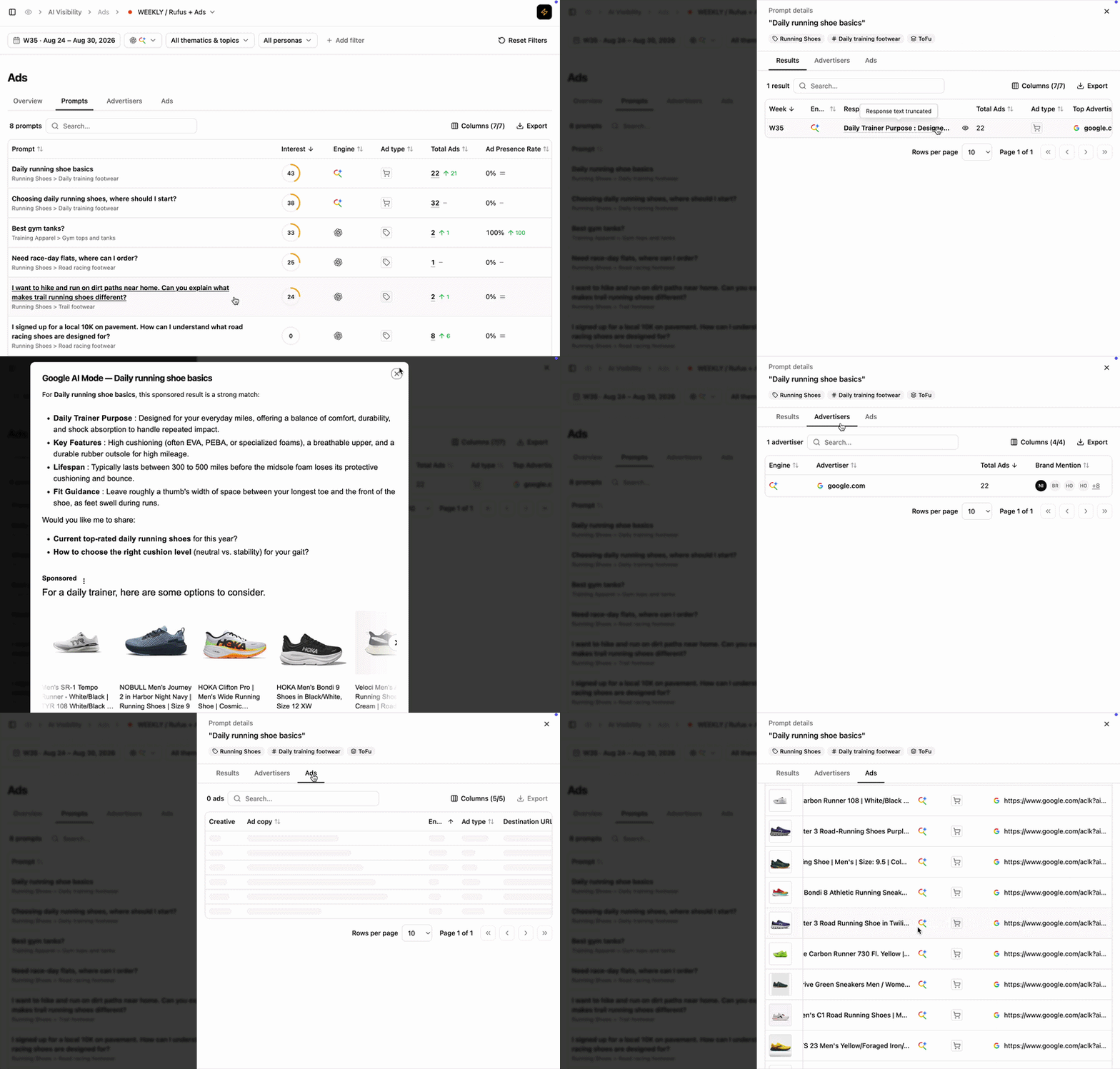 Open **Prompt Details** side panel to understand the advertising activity behind an individual query.
The three tabs let you investigate different layers of the same prompt:
* **Results** shows the underlying AI responses, the ads they contain and whether paid visibility coexists with organic presence.
* **Advertisers** shows which advertiser domains appear, how many ads they generate and which brands are promoted.
* **Ads** shows the individual creatives, ad copy, ad types and destination URLs surfaced to users.
This lets you move from **where advertising happens → who occupies that paid space → what users actually see.**
## Reading cues
These are signals to read, not rules.
Advertisers are active around a user need that also shows strong search interest. Explore the underlying advertisers and ads to understand who is targeting that need and what they are promoting.
Advertising activity is high, but the volume is concentrated among a small number of advertisers rather than reflecting broad competition.
Advertising exists around the prompt, but **your advertiser domain is absent**. Explore the advertisers present to understand who is capturing paid visibility around that user need.
Your advertiser domain is detected through paid placement while your brand or domain is absent organically. This can highlight user needs where your visibility currently relies on advertising rather than organic presence.
## How to use this view effectively
Start with **Total Ads and Ad Presence Rate** to identify prompts attracting advertising and understand where your advertiser domain participates.
Then open **Prompt Details** to investigate the underlying results, advertisers and individual ads.
Use your project dimensions and filters to connect these patterns back to **specific user needs and journeys**.
## Extra features
* **Filters** — refine the data displayed.
* **Add/Hide columns** — adapt the table to your workflow.
* **Export** — extract filtered tables to CSV or Excel.
* **Search** — find a brand or product via the search bar.
* **Sort** — order by any column.
## What's next
Compare who captures paid visibility and which brands they promote.
Analyse the creatives, messaging and destinations surfaced to users.
Open **Prompt Details** side panel to understand the advertising activity behind an individual query.
The three tabs let you investigate different layers of the same prompt:
* **Results** shows the underlying AI responses, the ads they contain and whether paid visibility coexists with organic presence.
* **Advertisers** shows which advertiser domains appear, how many ads they generate and which brands are promoted.
* **Ads** shows the individual creatives, ad copy, ad types and destination URLs surfaced to users.
This lets you move from **where advertising happens → who occupies that paid space → what users actually see.**
## Reading cues
These are signals to read, not rules.
Advertisers are active around a user need that also shows strong search interest. Explore the underlying advertisers and ads to understand who is targeting that need and what they are promoting.
Advertising activity is high, but the volume is concentrated among a small number of advertisers rather than reflecting broad competition.
Advertising exists around the prompt, but **your advertiser domain is absent**. Explore the advertisers present to understand who is capturing paid visibility around that user need.
Your advertiser domain is detected through paid placement while your brand or domain is absent organically. This can highlight user needs where your visibility currently relies on advertising rather than organic presence.
## How to use this view effectively
Start with **Total Ads and Ad Presence Rate** to identify prompts attracting advertising and understand where your advertiser domain participates.
Then open **Prompt Details** to investigate the underlying results, advertisers and individual ads.
Use your project dimensions and filters to connect these patterns back to **specific user needs and journeys**.
## Extra features
* **Filters** — refine the data displayed.
* **Add/Hide columns** — adapt the table to your workflow.
* **Export** — extract filtered tables to CSV or Excel.
* **Search** — find a brand or product via the search bar.
* **Sort** — order by any column.
## What's next
Compare who captures paid visibility and which brands they promote.
Analyse the creatives, messaging and destinations surfaced to users.